What is Variable Data Printing (VDP)?
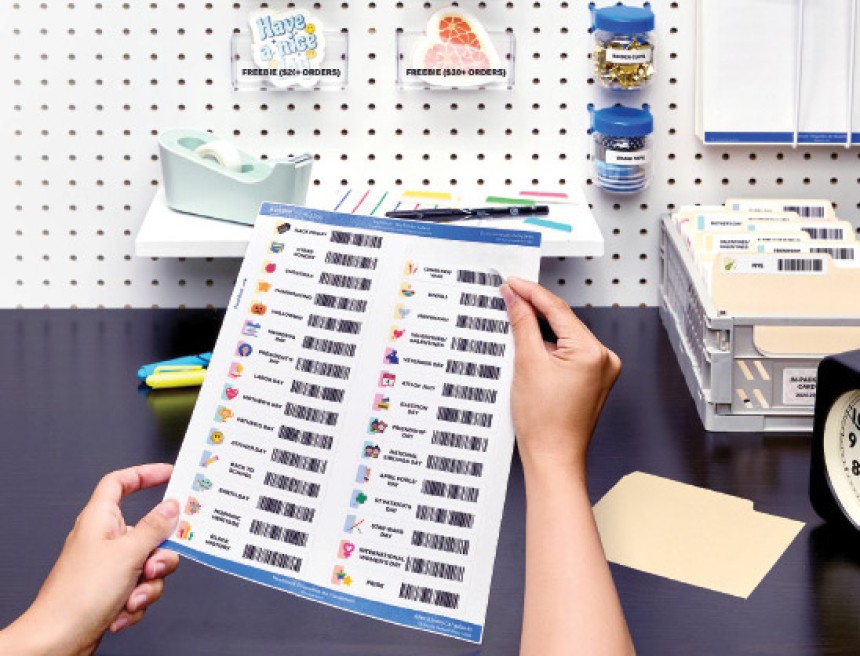
Variable Data Printing (VDP) lets you print labels where details like names, numbers, or barcodes automatically change from one label to the next. You can enter the data manually or import it from a spreadsheet, while the rest of the design stays the same.
What can you print with VDP?
- Barcodes - where serial numbers, asset IDs or product codes (SKUs) vary
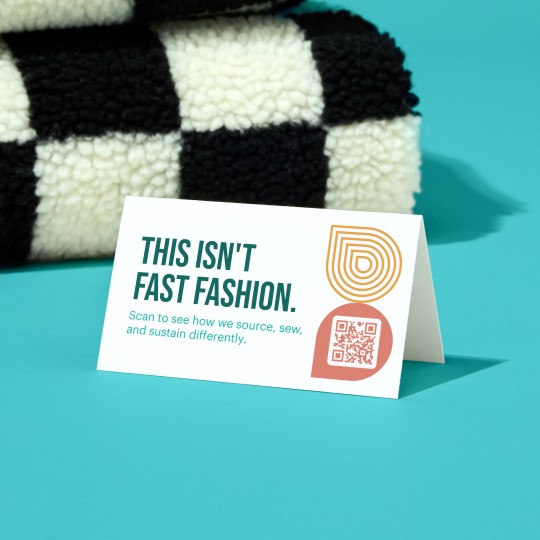
- QR Codes - where unique URLs or website links vary
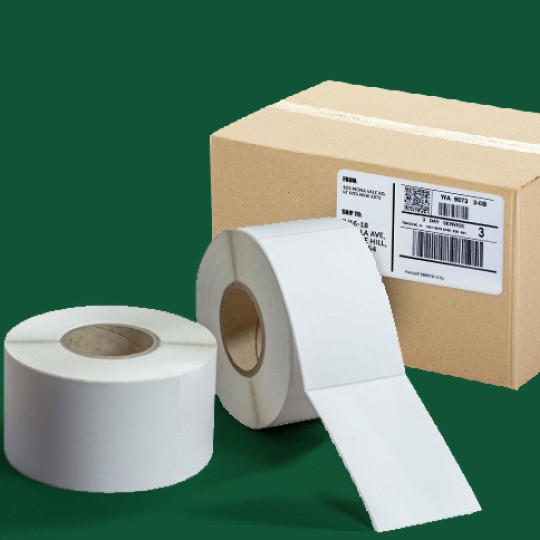
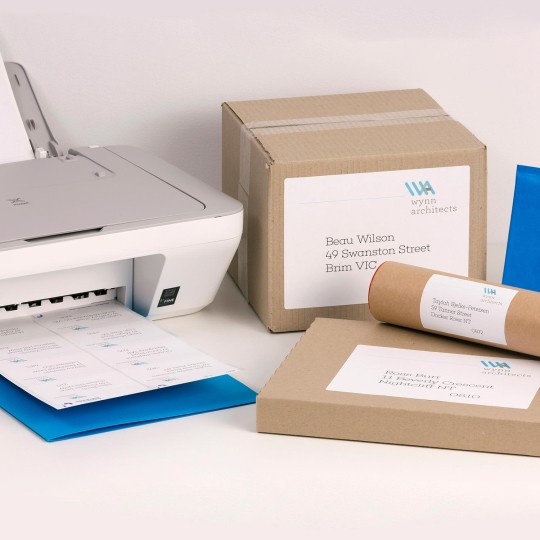
- Shipping and Mailing labels - where names and addresses vary
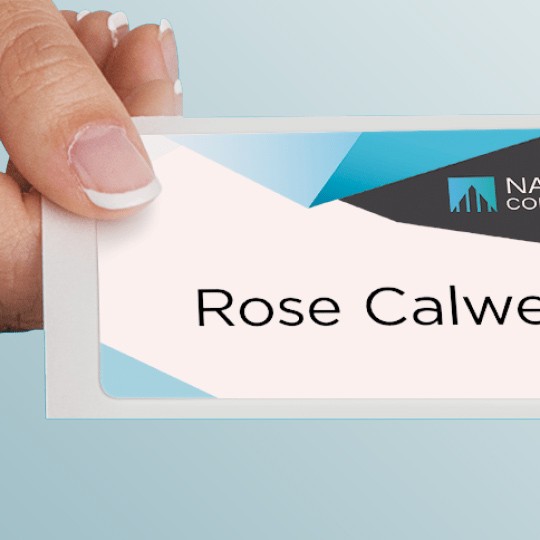
- Name Labels - where names and titles vary
- Food or perishable products - with batch, date or lot number
- Personalised marketing content for segmented audiences
- Verification codes or sequential numbering
More Tips on Variable Data Printing
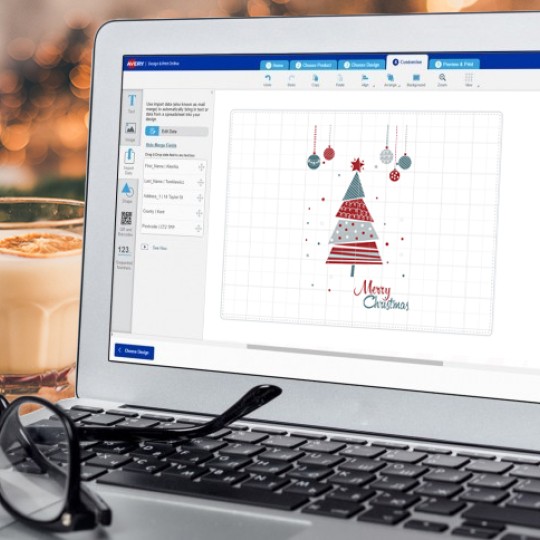
Mail merging is perfect for producing address labels, invitations and mass mailings, and Avery’s free Design & Print software includes this feature within it.
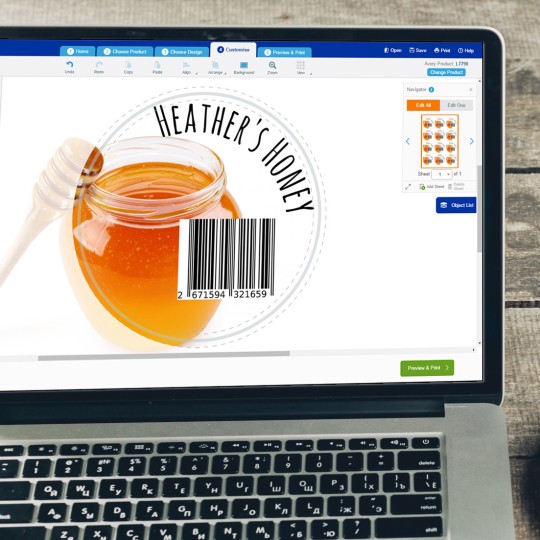
Read our step by step guide below to find out how to get started with our clever barcode tool.
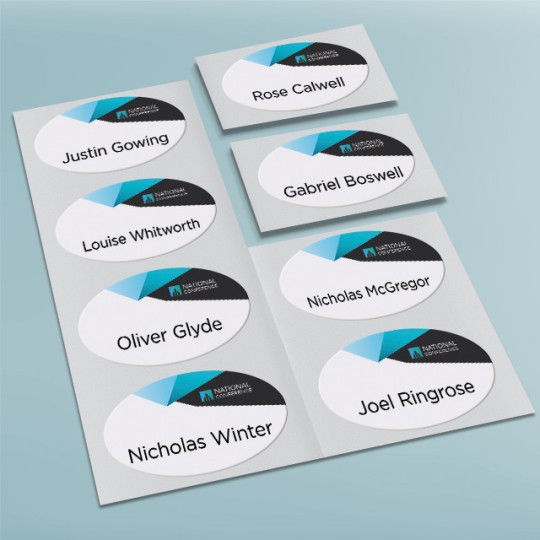
Import your contact or attendee list into our software, and it will automatically generate labels for each individual.
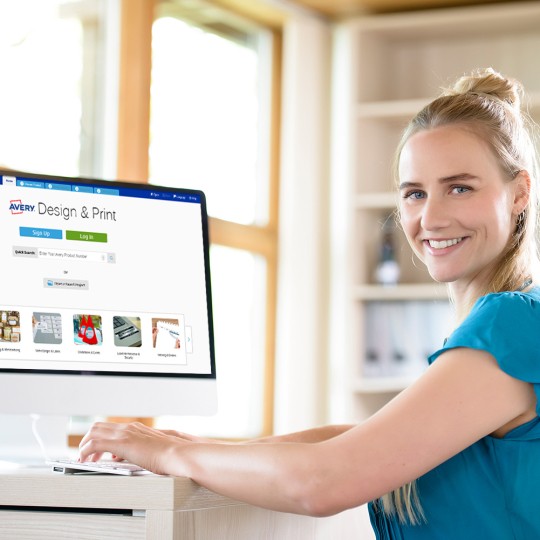
Read through our tips and tricks guidelines for Design and Print
Custom Printed Products for Variable Data Printing

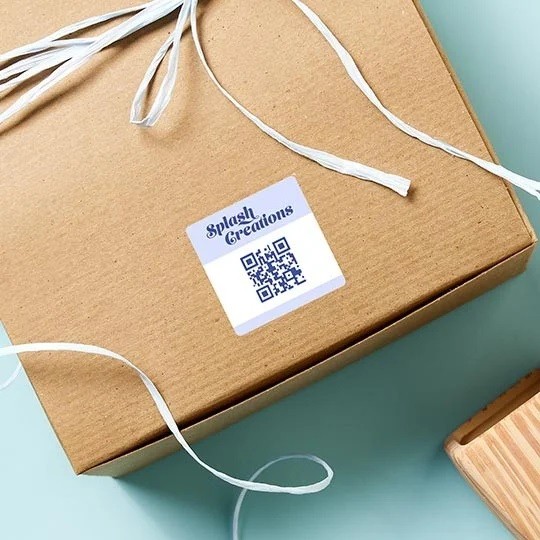
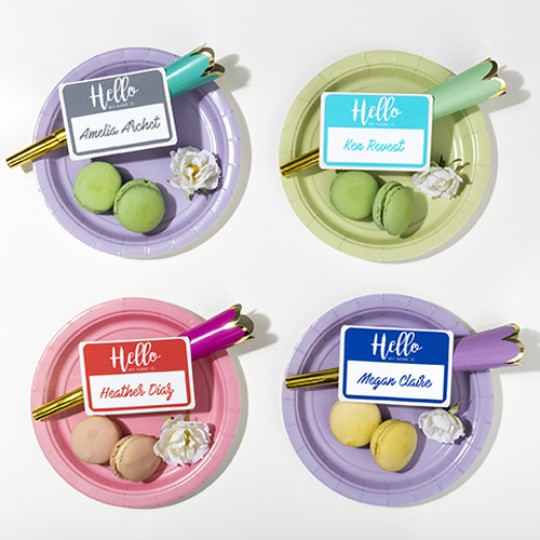
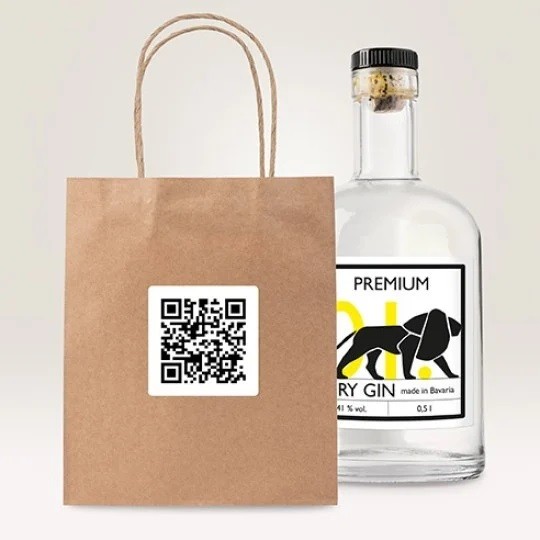
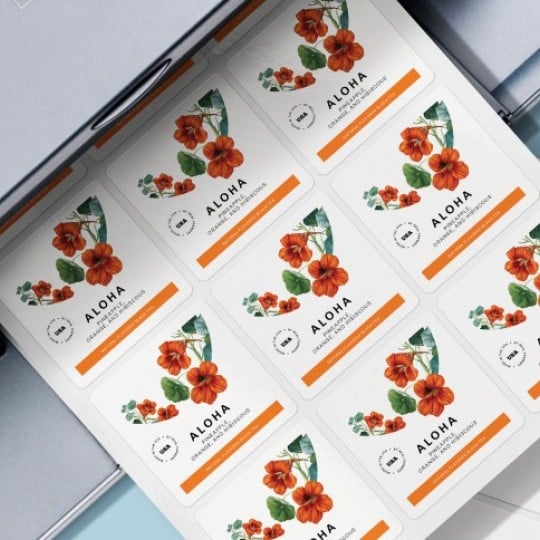
Blank Products suitable for Variable Data Printing



Frequently Asked Questions about Variable Data Printing
Variable Data Printing (VDP) is a digital printing method that automatically changes certain elements from one label to the next on the same print sheet, without the need for manual updates.
In our Avery Design and Print online software, we have a barcode generator. You will be prompted to select what type of format you need e.g. Code 128, EAN 13 etc. Enter in the numeric characters and the barcode will generate for you to position on the label.
Yes we have variable data feature available in Design and Print tool. First, create a list in a spreadsheet. When in Design and Print, select "Import Data" on the left hand side of the screen, then click "Start Import/Merge".
With Avery's Design and Print tool, you can save time by mail merging through importing addresses from a spreadsheet.
- First prepare your data in a spreadsheet like excel or google sheets, create a header row with descriptive titles such as First Name, Last Name, Address etc...
- Open Design and Print, select your software code and choose template.
- Click "Import Data" on the left hand side of your screen
- Browse your computer for your spread sheet.
- Arrange your data fields in the order you would like them to appear
- Hit the Finish , then Save and Print button
We offer some of the most commonly used barcode format including Code 128, QR Code, UPC-A, 2/5 Interleaved Deutsche Post, 2/5 Interleaved, Codabar, Code 39, Code 39X, Data Matrix, Deutsche Post IdentCode, Deutsche Post LeitCode, EAN 13, EAN 8, Intelligent Mail, ITF-14, MaxiCode, PDF417, Postnet, RM4SCC, GS1,