
QR Code Labels & Stickers
Create QR code labels in just a few clicks with Avery's Free Design and Print tool, complete with a built-in QR code generator.
Blank Products for QR Labels & Stickers
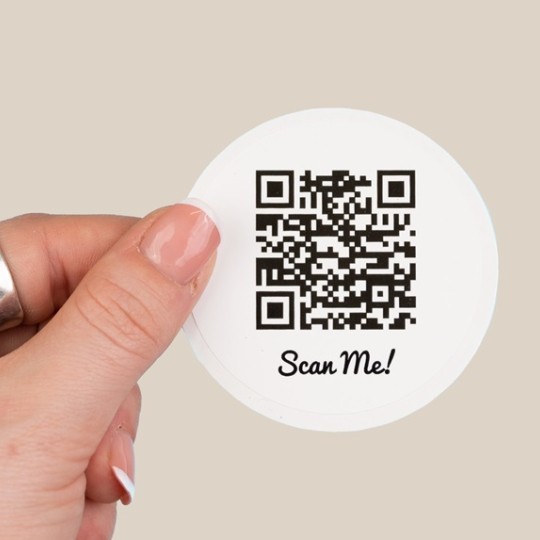
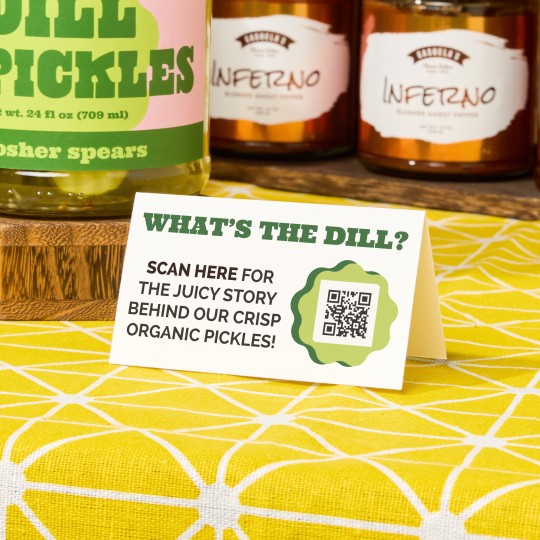
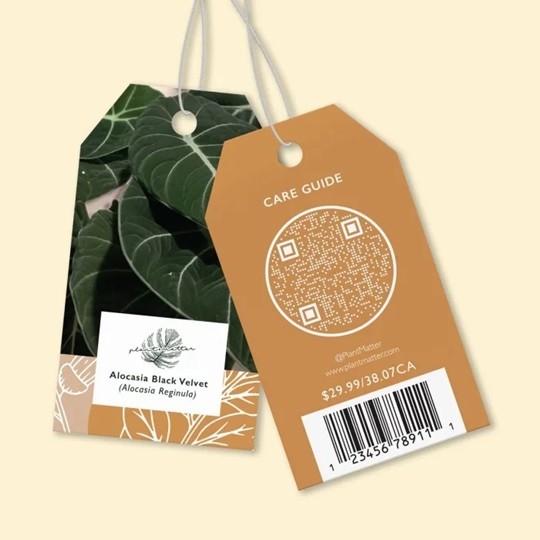
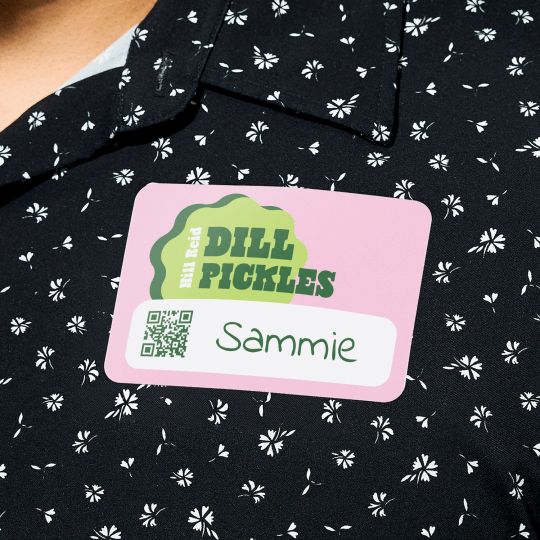
Create a QR Label in 4 Easy Steps
With Avery’s Design & Print tool, you can quickly create unique barcode labels without extra apps. Just follow four easy steps to customise your barcode labels.
1: Choose your label
Configure your label shape, size, material and quantity.
2: Open Design & Print
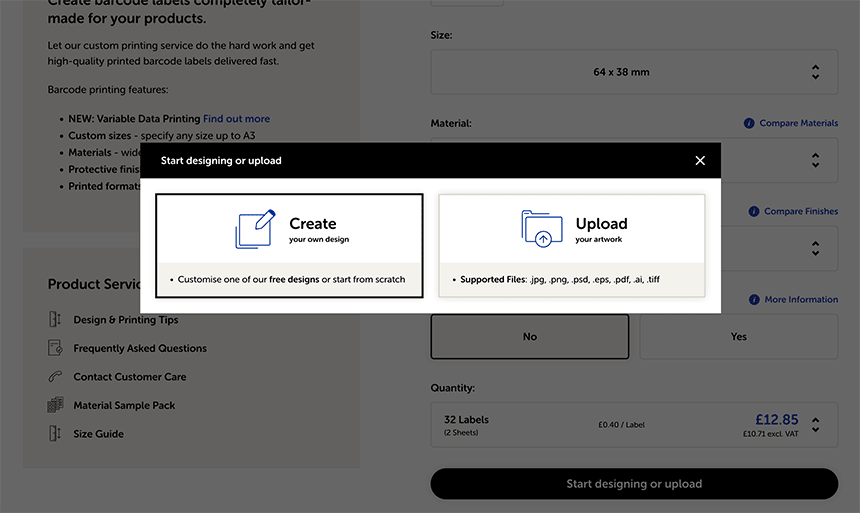
Click the 'Start designing or upload' button and choose 'Create'.
3: Add your QR Code
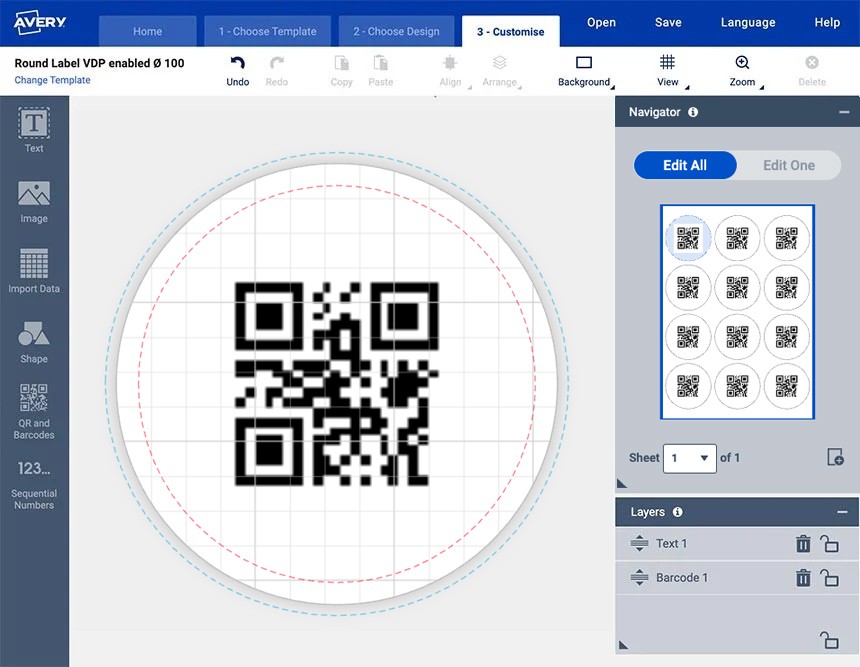
Choose the QR codes option in the left sidebar and provide your variable data in one of these ways:
- Enter manually
- Spreadsheet
- Sequential Number
Or manually add designs via the 'Navigator' to the right.
4: Select Code Type
Select your QR Code type. Enter either your Text, Email, URL, Phone Number, VCard or MeCard. Select Finish button to see the created QR code in your label.
Need to create QR codes in Bulk?
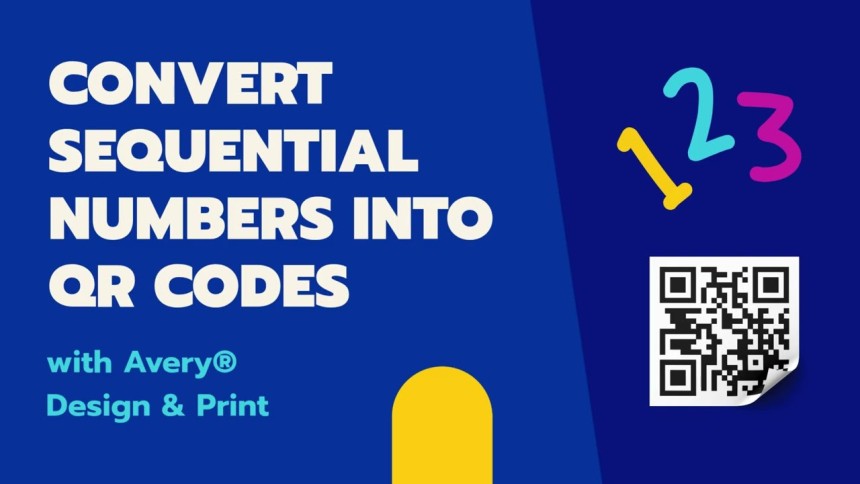
This guide will show you how to add sequential numbers into your QR Codes
With Avery Design & Print, adding QR codes with sequential numbers is easier than ever. Create them in just a few clicks, all within our design tool, without needing to leave the platform to find an external QR code generator.
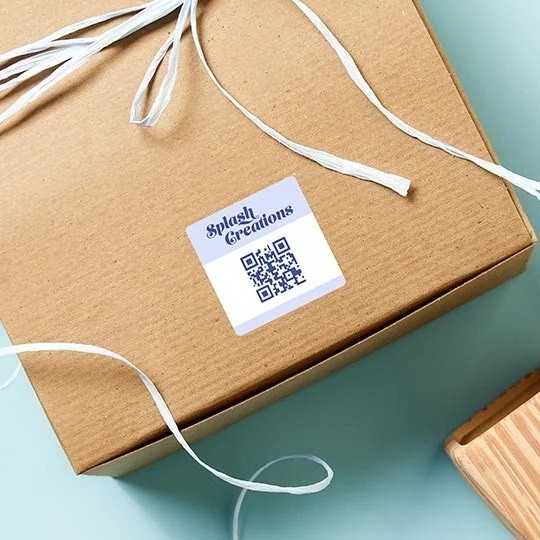
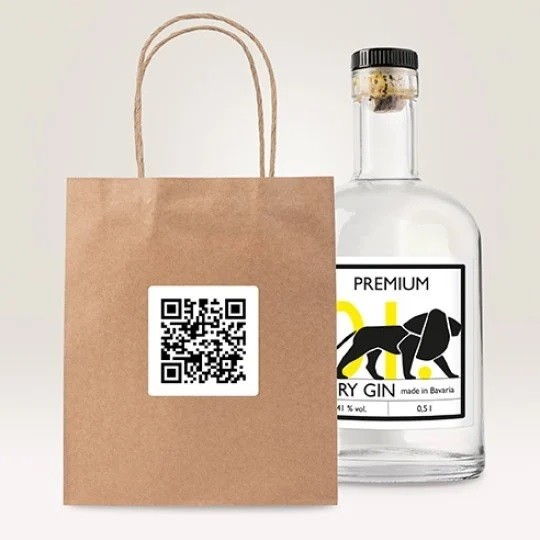
Custom Printed Products for QR Codes
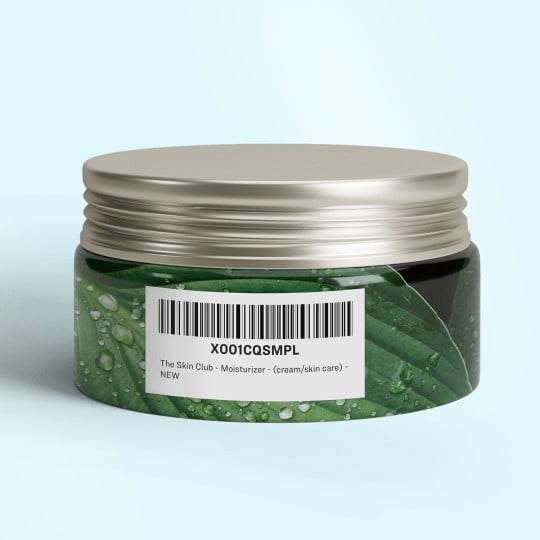
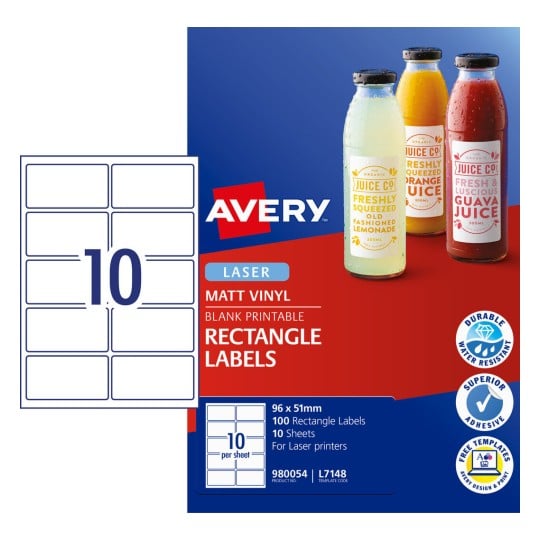
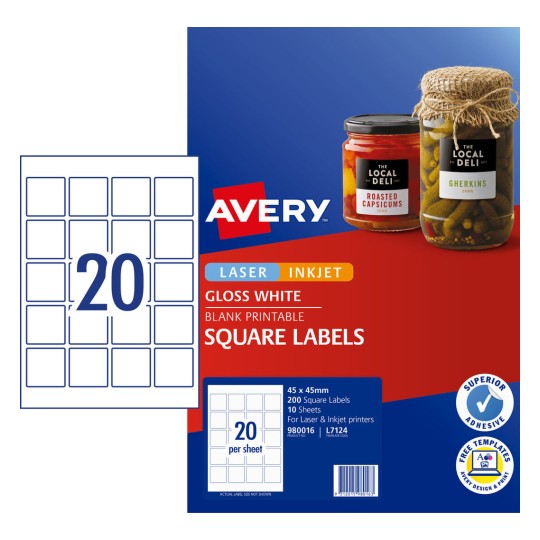
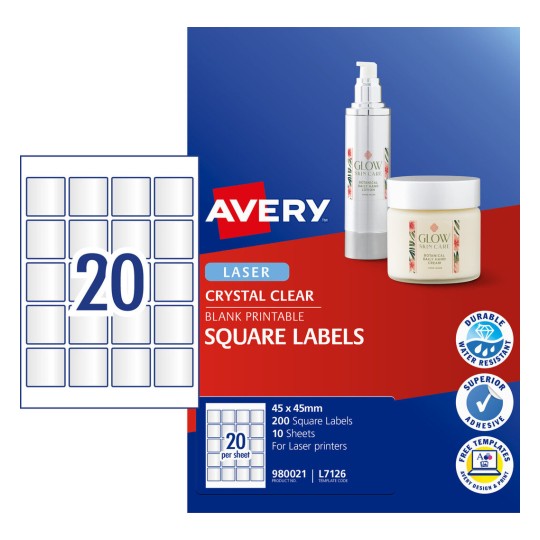
Buy Blank Labels in Packs perfect for QR Codes
Frequently Asked Questions about QR Codes
A QR code label is a printed label with a two-dimensional barcode called a QR code, short for Quick Response. You can scan a QR code label with a smartphone or tablet to go to a website, social network, video, PDF file, text, or even a virtual business card.
Create a QR code in just a few clicks with our Avery Design & Print tool!
Open Avery Design & Print and click the QR Code icon.
Select the type of QR code you need. Options include Text, URL, Email, Phone Number, vCard or MeCard.
Enter the text or details you want to include in your QR code.
It's that easy! You can now add your QR code to your design and customise it to suit your needs.
The appropriate size for QR code labels depends on several factors, including the intended reading distance, the substrate on which the label will be placed, and the amount of information to be encoded in the QR code.
Generally, a QR code size of at least 2 x 2 cm (20 x 20 mm) is recommended to ensure adequate readability, so you can choose square labels starting at 2.5 x 2.5 cm (25 x 25 mm). It's always advisable to test different sizes to find the one that best suits your specific needs.
Here are some considerations for choosing the appropriate size for your QR code labels:
Reading distance: The larger the QR code label, the easier it will be to scan from a distance. If you anticipate users will need to scan the QR code from a distance, it may be wise to opt for a larger size to ensure easy reading.
Label support: The size of the QR code label must be appropriate for the surface on which it will be placed. Ensure that the label is large enough to be readable and that the QR code is not compressed.
Amount of information: If you have a lot of information to encode in the QR code, you may need to increase the size of the label to ensure that the QR code remains readable and functional.
You can print your QR codes on all our labels, so the choice will mainly depend on your intended use.
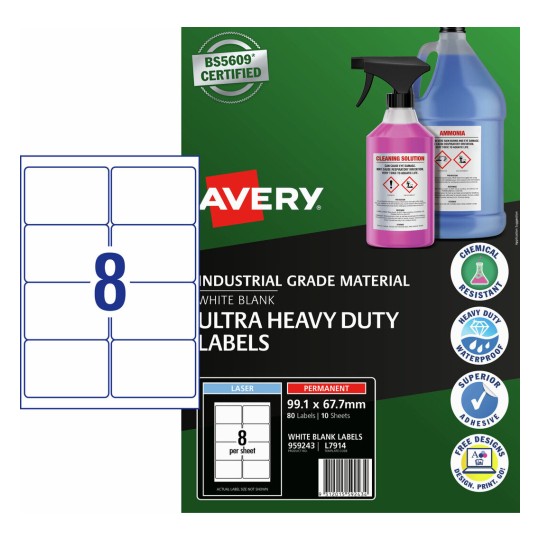
If you need to affix your QR code labels outdoors, we recommend our ultra-resistant Heavy Duty labels . If your QR code labels will go on liquids or oils, opt for wateproof labels . Otherwise, all our paper labels are perfectly suitable.
Absolutely! You can print different QR codes on each label on the same sheet. To do this, simply order blank labels on A4 sheets and print them using our Avery Design & Print tool.
You can :
- manually create each QR code and place them on the different labels
- Import all your data in just a few clicks from an Excel or Google Sheet file, our QR code generator takes care of the rest!
If you use our printing service, we can only print one design per sheet.
Yes with Avery's Design and Print tool, you can easily import your data in an excel spreadsheet or convert sequential numbers into QR Codes. View video tutorial on how to convert sequential labels to your QR Codes