Guided Tour of Our Site
Avery Wizard
Avery Design & Print Online
Find a Template
Find a Product
Helpful Software Guides
Demos
|
Mail Merge With the Avery® Wizard
Using mail merge and your database, you can personalise your letters, cards, name badges – in fact, any Avery® printable product! It’s quick and easy to do. Take a lesson from us - here we step you through the process for using the Avery Wizard to mail merge. For ease, we’ll refer to labels here, but you can merge to any of our printable products. Try merging names for invitations, or name tags! You might have learnt how to mail merge years ago, but this way could change the way you work!
|
|
Instructions:
- Close all Microsoft® Office programmes and Lotus® Notes®
- Download and install the Avery Wizard
- Open Microsoft Word
Instructions: MICROSOFT WORD XP AND 2003
Click on the Avery Wizard icon on your toolbar. The Avery Wizard will open.
On the Welcome to the Avery Wizard screen, click Next
MICROSOFT WORD 2007
Click on the Avery toolbar on your ribbon, then click on the Avery Wizard icon. The Avery Wizard will open.
On the Welcome to the Avery Wizard screen, click Next
Click on the Avery Wizard icon on your toolbar. The Avery Wizard will open.
On the Welcome to the Avery Wizard screen, click Next
MICROSOFT WORD 2007
Click on the Avery toolbar on your ribbon, then click on the Avery Wizard icon. The Avery Wizard will open.
On the Welcome to the Avery Wizard screen, click Next
Instructions:
- On the Select an Avery Product screen, in the Product number or description field, type in the Avery software code you want to use, and click Search
- Select the relevant product and click Next
Instructions:
- On the Options for Entering Information screen, you'll see four ways you can enter information
- To mail merge, select Merge data from an existing data file and click Next
Instructions: There are three methods to select your merge data:
RECENTLY USED FILES
Any files you have recently merged will appear in Your most recent data files
Click on your file and click Next
OR
QUICK SEARCH: SEE SELECTED FILE TYPES
Click on Access..., Excel... or Word..., and while navigating to your files, you will only see those files types
Navigate to your file and click Open, then click Next
OR
TRADITIONAL FILE NAVIGATION
Click on Browse...
Navigate to your file and click Open, then click Next
RECENTLY USED FILES
Any files you have recently merged will appear in Your most recent data files
Click on your file and click Next
OR
QUICK SEARCH: SEE SELECTED FILE TYPES
Click on Access..., Excel... or Word..., and while navigating to your files, you will only see those files types
Navigate to your file and click Open, then click Next
OR
TRADITIONAL FILE NAVIGATION
Click on Browse...
Navigate to your file and click Open, then click Next
Instructions:
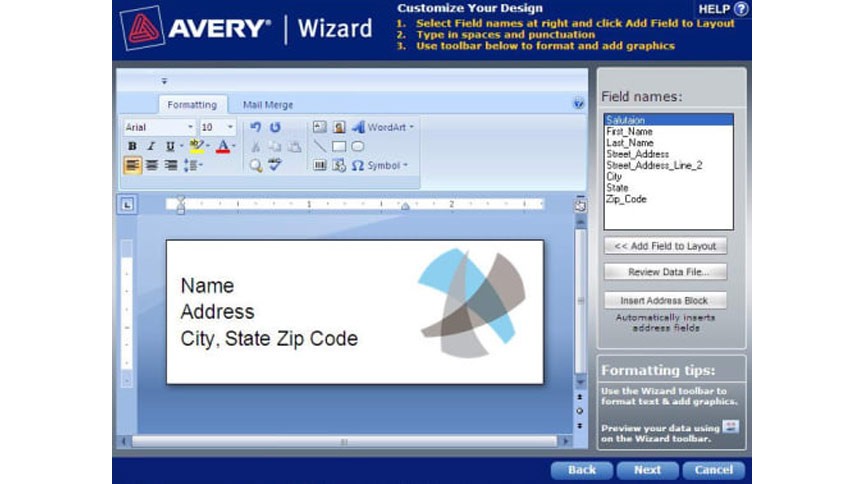
- On the Customise Your Design screen, you will see the fields from your data in the Field names area
- In the Field names area, click on a field you would like on your labels and click on << Add Field to Layout. Each time, the field will be added to your label.
- Repeat for each field required on the label
Instructions:
- You can use all normal Microsoft Word and keyboard functions to change margins, move to new lines, change colours, fonts etc. to design your label
- When you are finished, click Next to complete the merge
Instructions:
Tips to a Great Mail Out
- On the Print Preview and Finish screen, select a merge direction
- Select Fill down for Avery Quick Peel™ Labels so they will be easy to remove in the order in which you merged your data
- To preview your work, click Print Preview, or click Finish to switch to your completed work
- For easy printing, always make sure your print settings are set to A4
Tips to a Great Mail Out
- It’s usually easier to check your data and make your changes in your original file than to scroll through labels or letters
- Complete as much formatting as possible in the Wizard, rather than in your document. You'll save time making the change once, rather than page by page in Microsoft Word.
- To add graphics to your merge, simply click on the Insert image button in the Wizard. It is much easier to add a graphic once in the Wizard than to each label in Word.
- Mail merge doesn’t just work for names and addresses. Try merging names and company names for name tags!